
WorkPress provides a range of customization options through the WordPress Customizer. You can use these options to control the appearance, branding, and overall design of your website without editing theme files.
All available theme options can be accessed from the WordPress dashboard.
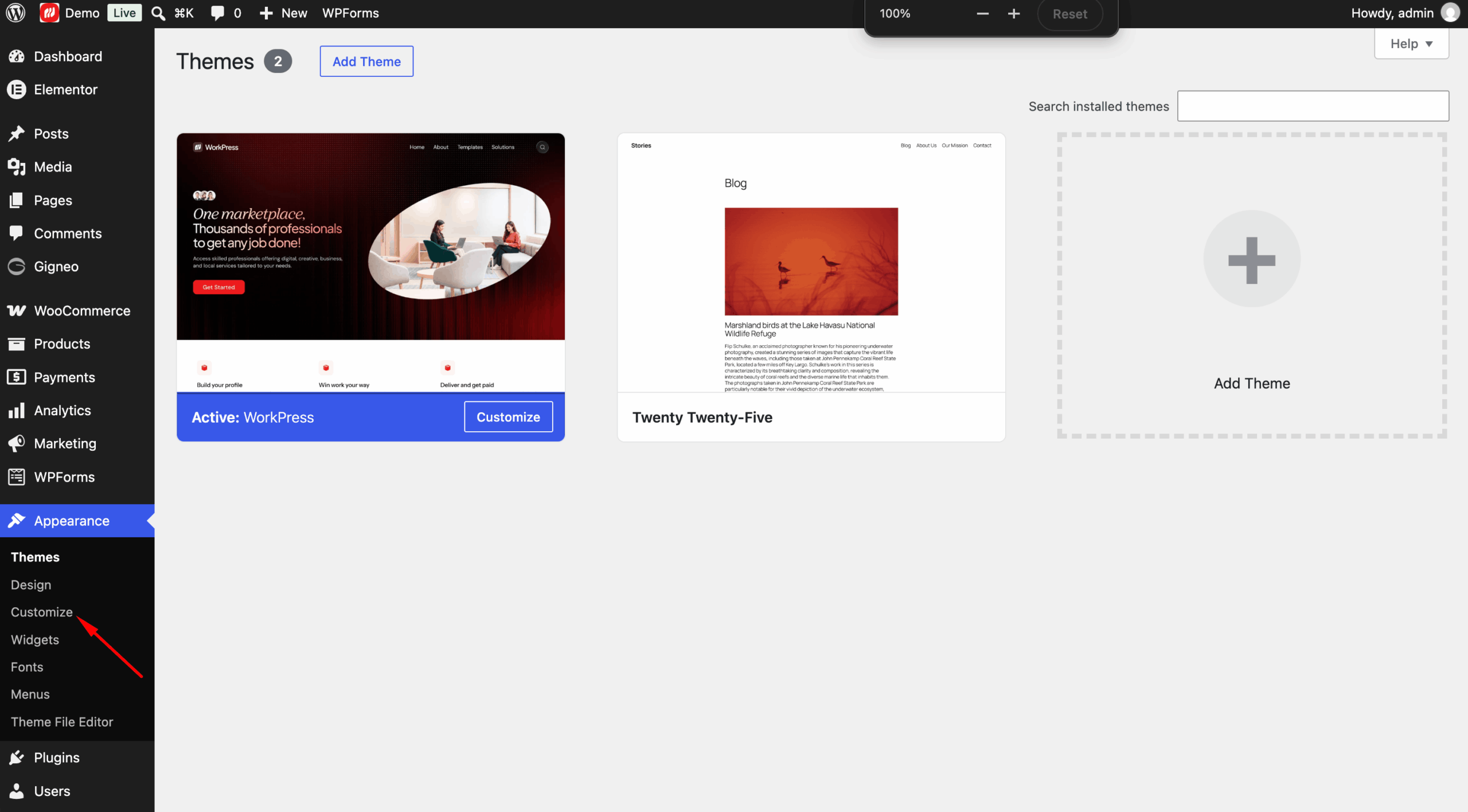
Step 1: Log in to your WordPress admin dashboard and navigate to Appearance → Customize.
Step 2: The WordPress Customizer will open with the available WorkPress theme options.
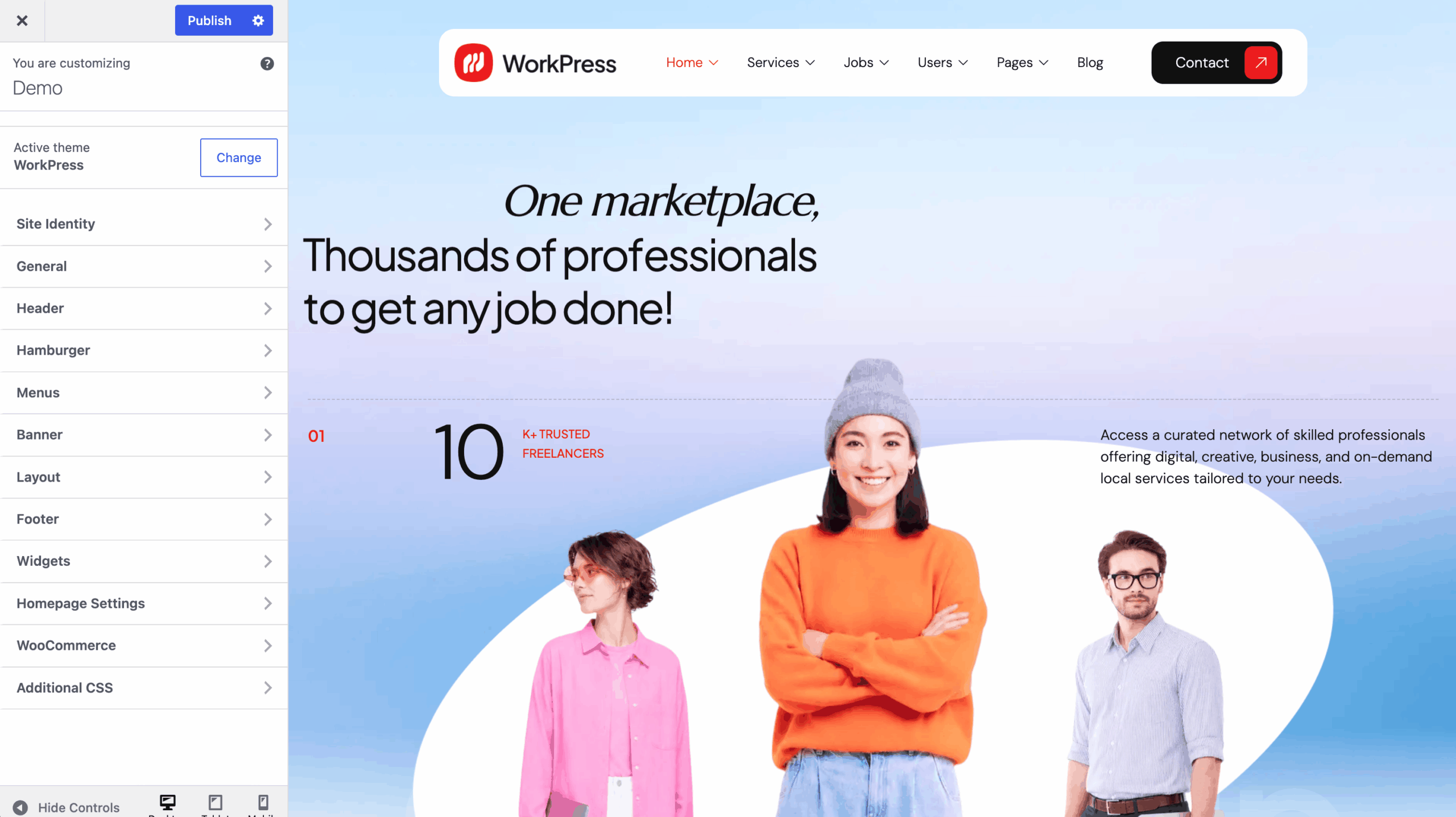
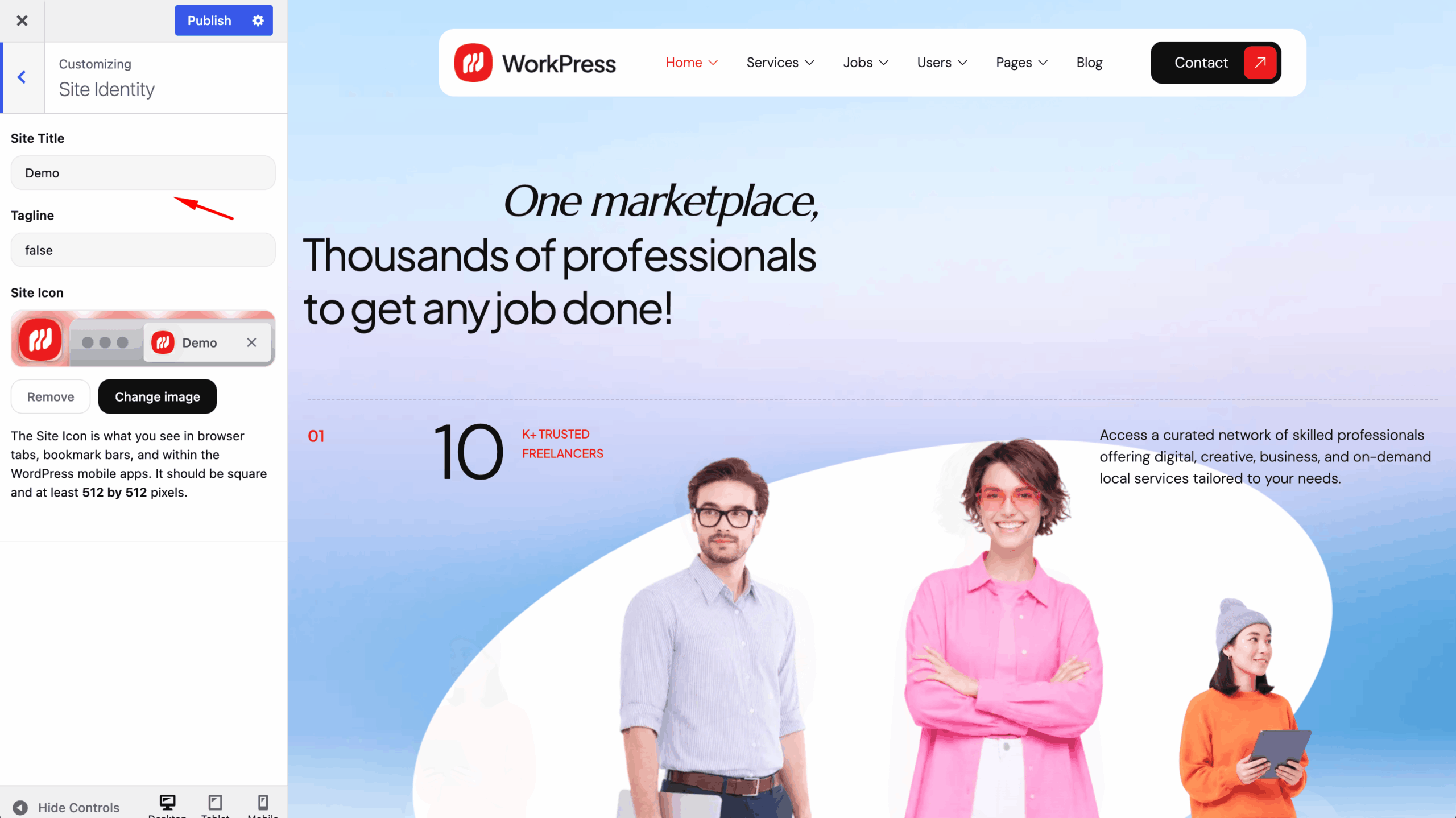
Step 3: Select the section you want to customize and adjust the available settings according to your requirements.
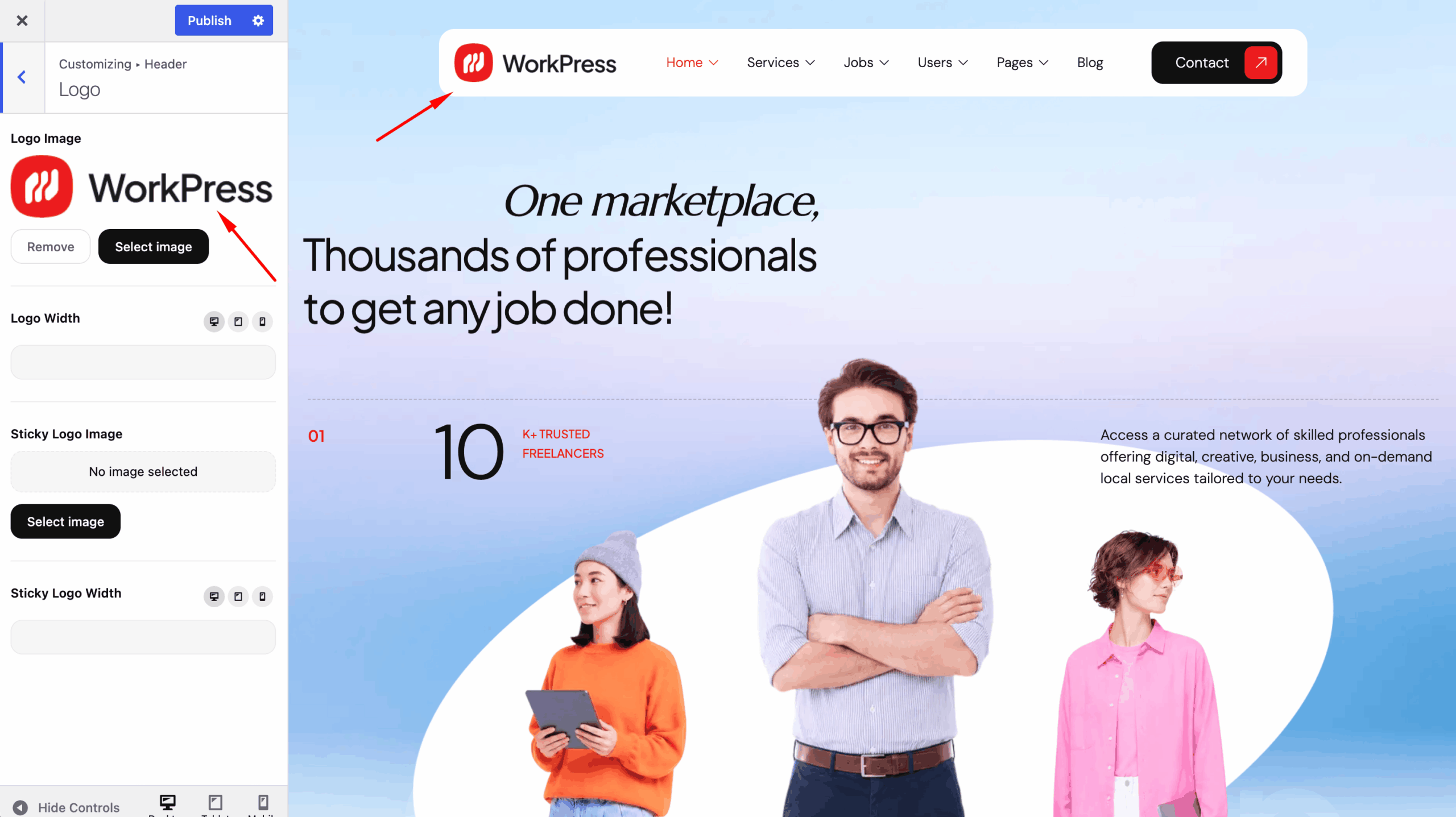
Step 4: Use the live preview to review your changes before applying them to your website.
Step 5: After completing your customization, click Publish to save and apply the changes.
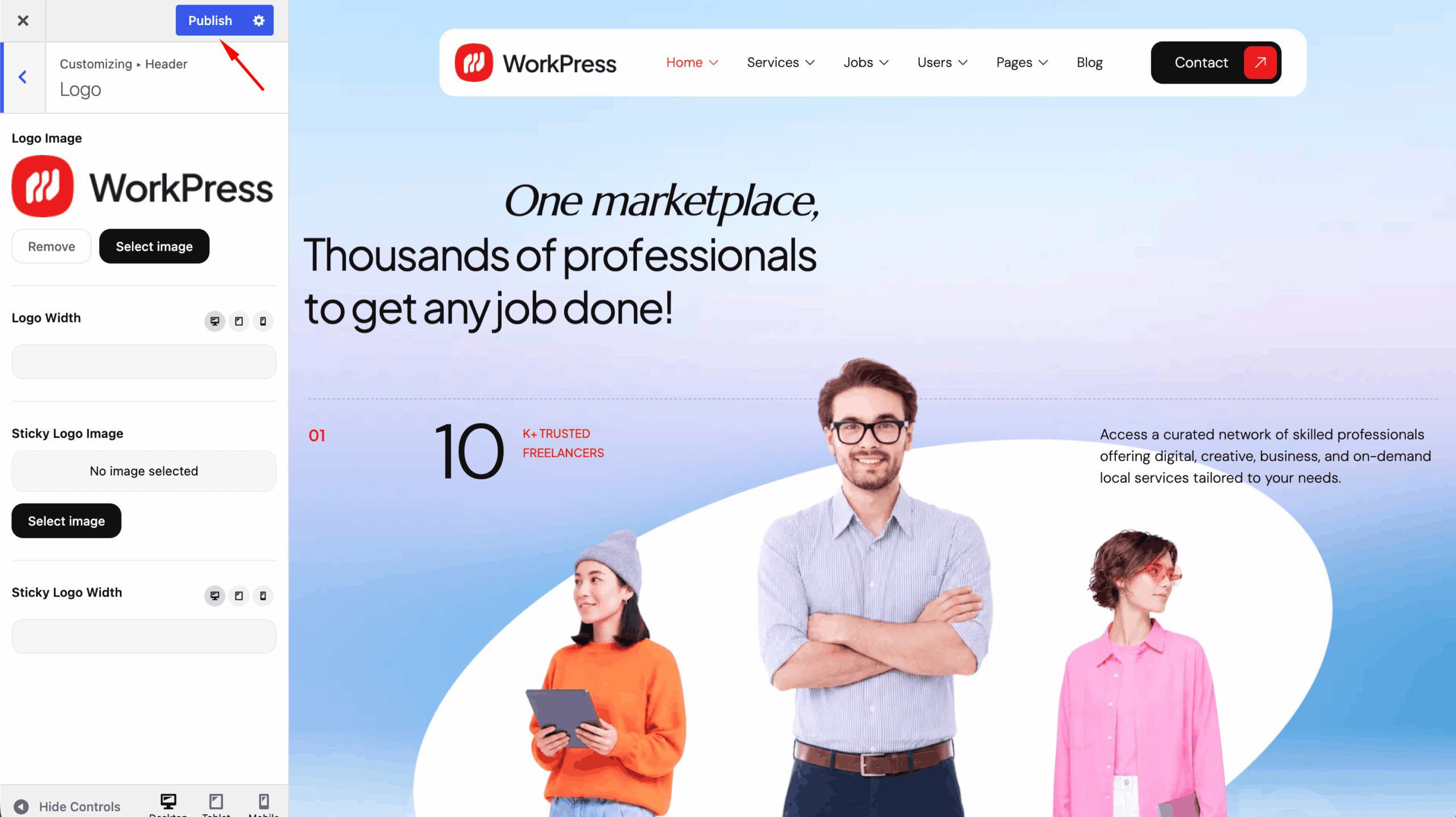
Theme Customization Sections
WorkPress organizes its customization options into separate sections, making it easier to manage different parts of your website.
Common sections may include:
- Site Identity — Configure your website title, tagline, and site icon.
- General — Manage global layout, fonts, colors, buttons, pagination, preloader, and scroll-to-top settings.
- Header — Customize the header layout, logo, menu, submenu, search, and header buttons.
- Hamburger — Configure the mobile/off-canvas menu, including toggle, layout, close button, logo, menu, submenu icon, and back menu.
- Banner — Customize banner layout, page title, and breadcrumbs.
- Layout — Configure layouts for blogs, archives, single pages, posts, products, empty content, and 404 pages.
- Footer — Customize the footer layout, logo, content, shadow text, and social icons.
The available options may vary depending on your WorkPress version and installed plugins.
Important
Customizer options control the theme’s appearance and presentation. Marketplace functionality such as services, jobs, users, orders, and payments is managed through the marketplace engine and its settings.
For detailed configuration of individual sections, continue with the corresponding documentation pages.